This guide explains how to set up WiserReview on your custom ecommerce store.
It covers importing reviews, adding widgets, automating review requests, syncing products, grouping products, and integrating with Google Shopping.
1. Import Reviews from Existing Platforms
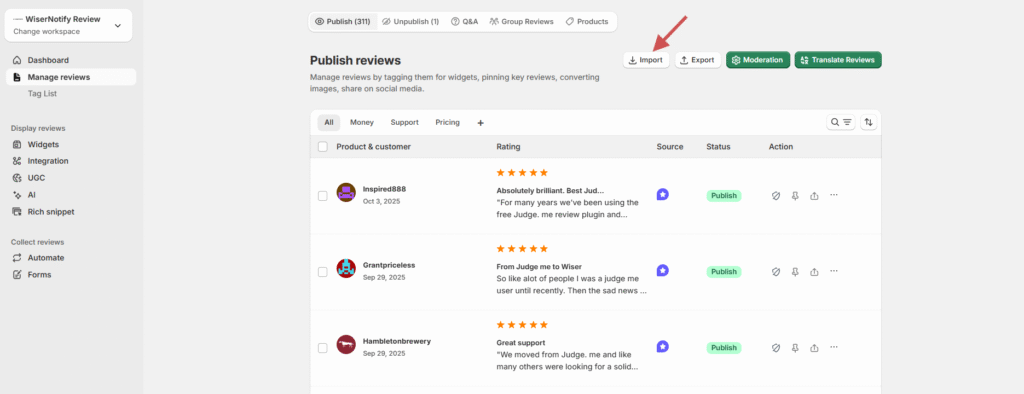
If you already have reviews from platforms like Judge.me, you can import them into WiserReview.
Steps:
-
Go to Manage Reviews → Import Reviews.
-
Select the source platform (e.g., Judge.me).
-
Upload your review CSV file.
-
Map columns and confirm import.
Make sure you are importing the review with the Product ID
Detailed guide: Import reviews from other platforms
2. Installing widgets
Display product review section
Step 1:- How to Add the Product Review Section
-
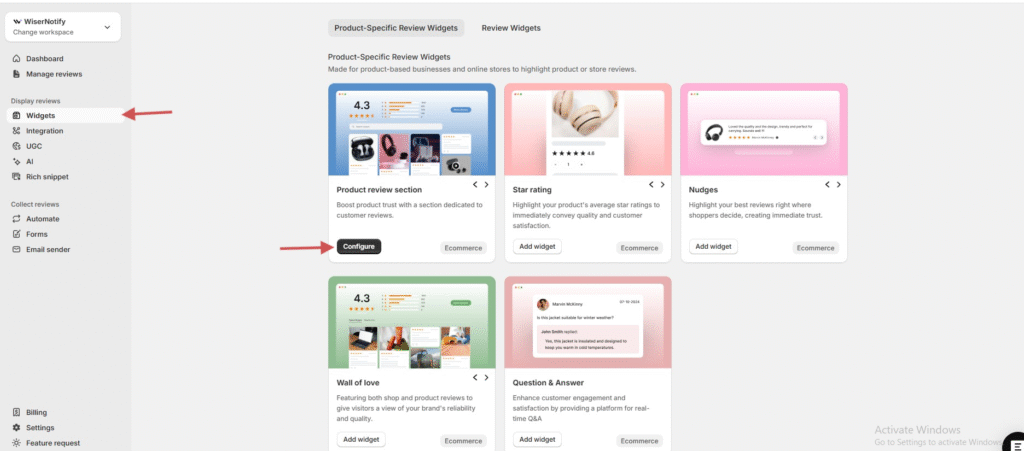
Go to Widgets in the WiserReview dashboard.
-
Locate the product review section widget and click “Add & Manage.”
-
Select which reviews to show using filters or tags.
-
Customize:
-
Layout (card size, rotation speed).
-
Style (color, fonts, borders.
-
Step 2: Installing the product review section
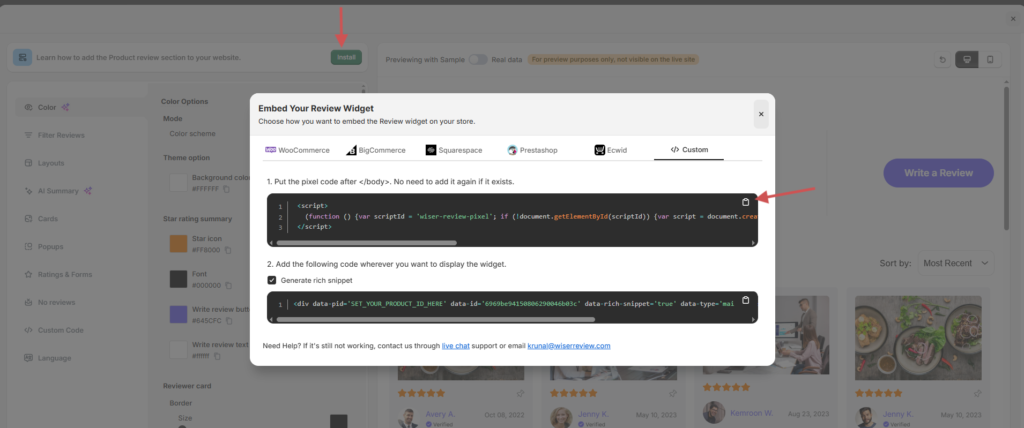
- Click on the install button.
- Go to the custom tab.
- Copy pixel code and put the pixel code after </body>, no need to add it again if it exists.
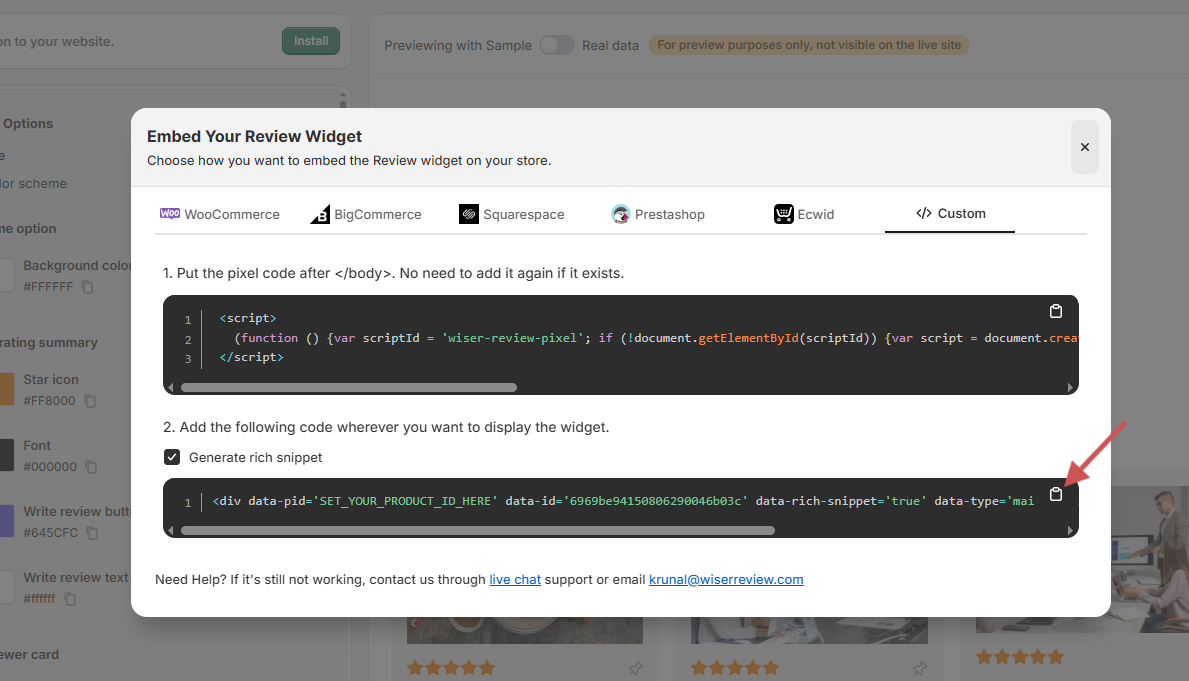
- Then copy and add the following code wherever you want to display the product review section.
Note:- Set your product ID dynamically.
Display Star rating on your Custom Ecommerce site
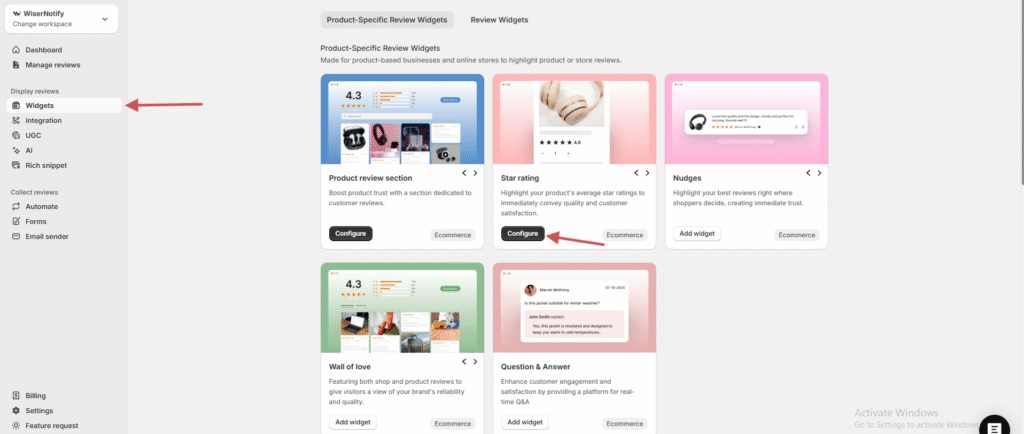
Step 1:- How to Add the Star Rating
-
Go to Widgets in the WiserReview dashboard.
-
Locate the Star Rating widget and click “Add & Manage.”
-
Select which reviews to show using filters or tags.
-
Customize:
-
Layout (card size).
-
Style (color, fonts, borders).
-
Step 2: Installing the Star Rating section
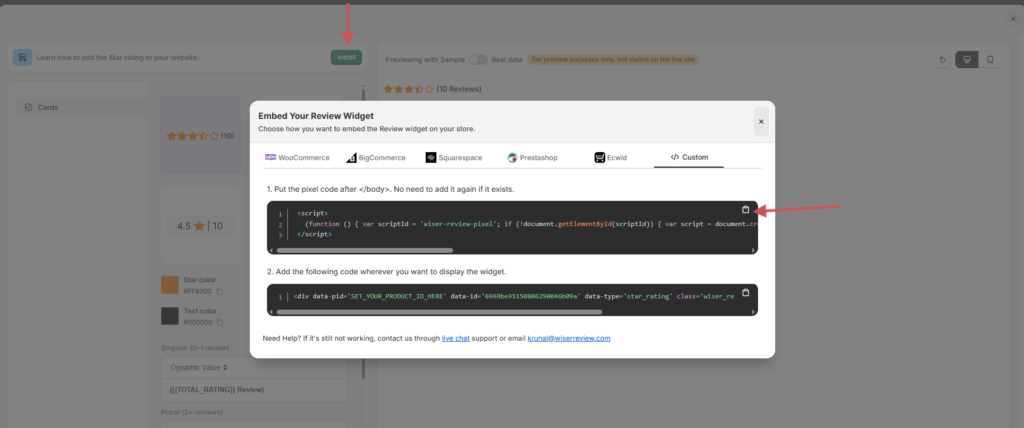
- Click on the install button.
- Go to the custom tab.
- Copy pixel code and put the pixel code after </body>, no need to add it again if it exists.
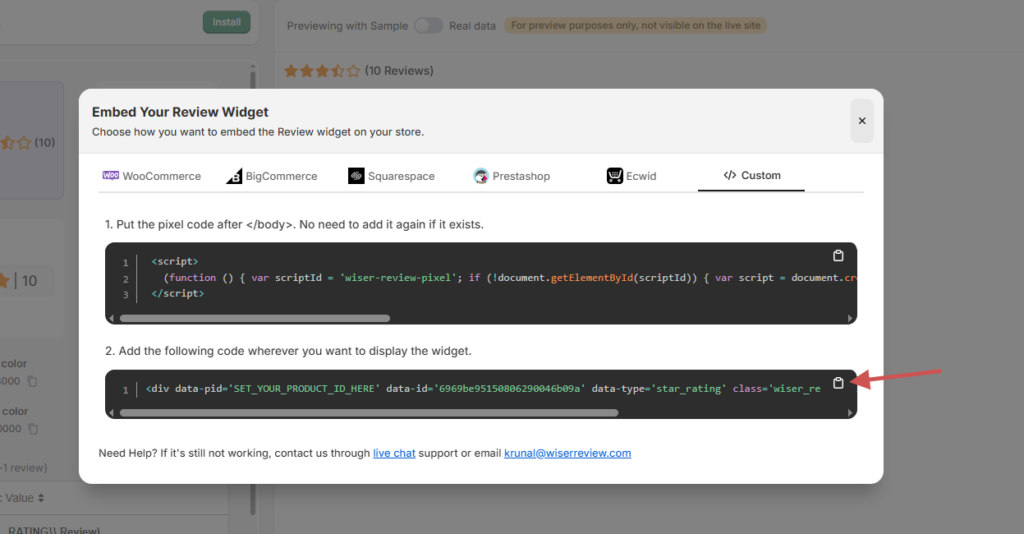
- Then copy and add the following code wherever you want to display the product review section.
Note:- Set your product ID dynamically.
Other widgets
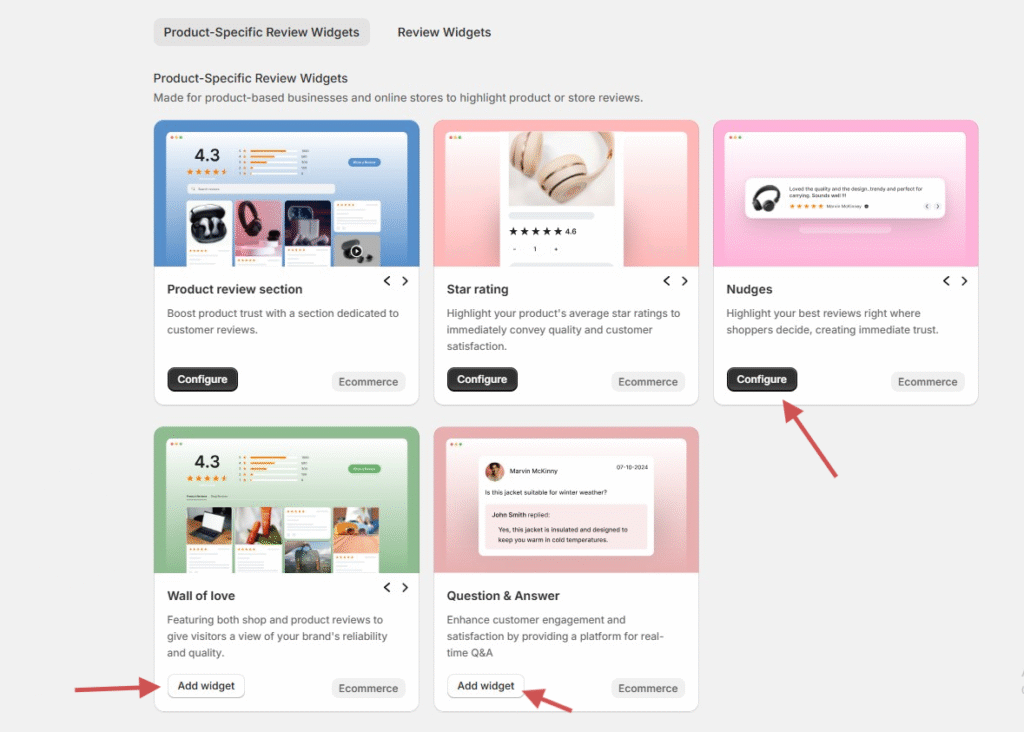
Same as the way you can add other widgets, like
1) Nudges
Highlight your best reviews right where shoppers make their decisions, creating immediate trust.
2) Wall of love
Featuring both shop and product reviews to give visitors a view of your brand’s reliability and quality.
3) Question & Answer
Enhance customer engagement and satisfaction by providing a real-time Q&A platform.
3. Collecting reviews ( Automation)
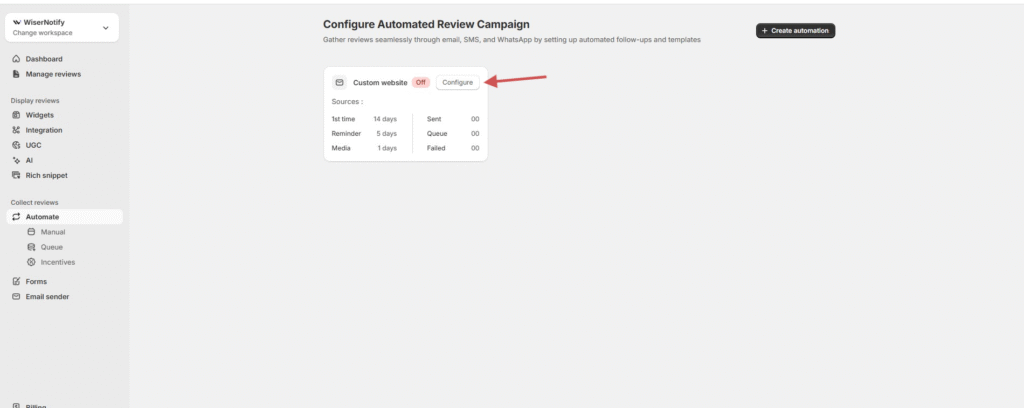
You send your order to our webhook endpoint so we can schedule a review request.
Detailed guide: How to Set Up Automated Review Requests (Custom Ecommerce)
4. Sync your product with WiserReview
If you want to display reviews with product names and images, you must synchronize product data (name, URL, image, etc.) with WiserReview.
Detailed guide: Product Sync API at WiserReview
5. Product Grouping

Combine reviews for similar or variant products (such as different colors or sizes).
Steps:
-
Go to Manage Reviews → Product Grouping.
-
Click Create Group.
-
Select and add related products.
-
Save the group.
Detailed guide: Product Grouping in WiserReview
6. Integrate with Google Shopping
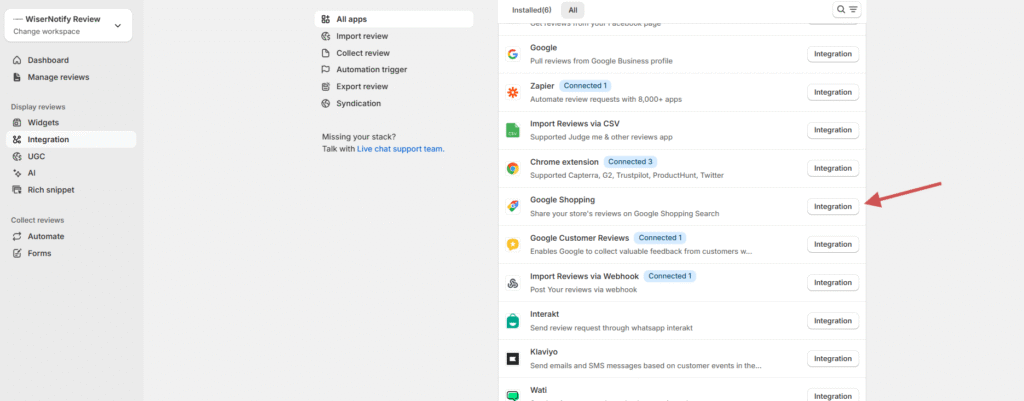
Connect your WiserReview account with Google Shopping to display product ratings in search results.
Steps:
-
Go to Integrations → Google Shopping.
-
Click Integration.
-
Generate the Review Feed XML.
-
Add the feed URL to your Google Merchant Center account.
Detailed guide: Connect WiserReview with Google Shopping