This guide explains how to create and customize these incentives within WiserReview.
Creating and Customizing Incentives.
Step 1: Create Incentives
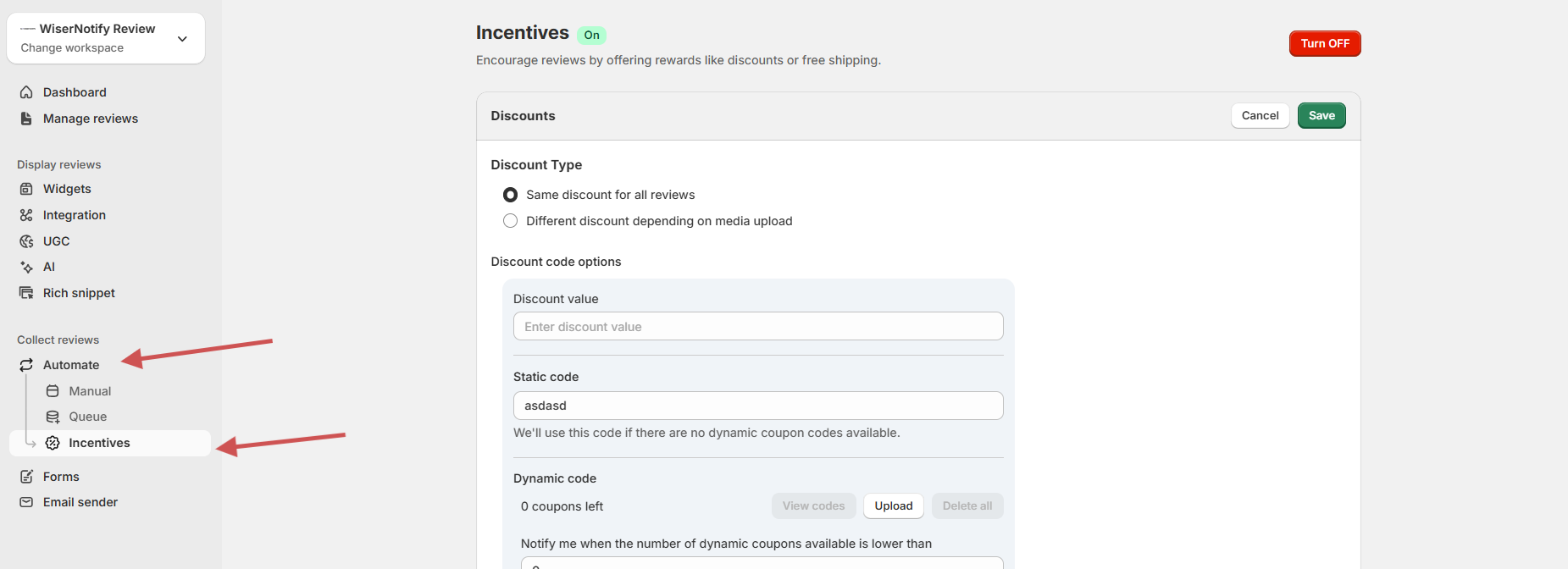
Location: Collect Review –> Automate -> Incentives.
Step 2. Pick Your Discount Type

You can choose:
1. Same discount for all reviews:- Use this when you want to give one fixed reward to every reviewer.
2. Different discounts based on the media added:- Use this when you want to give a higher reward for more valuable reviews.
This option lets you set different discount values for:
- Reviews with only text
- Reviews with at least one photo
- Reviews with at least one video
- Reviews with photo or video
Step 3. Select Review Types: Different discounts depending on media upload
Choose which reviews should receive a reward:
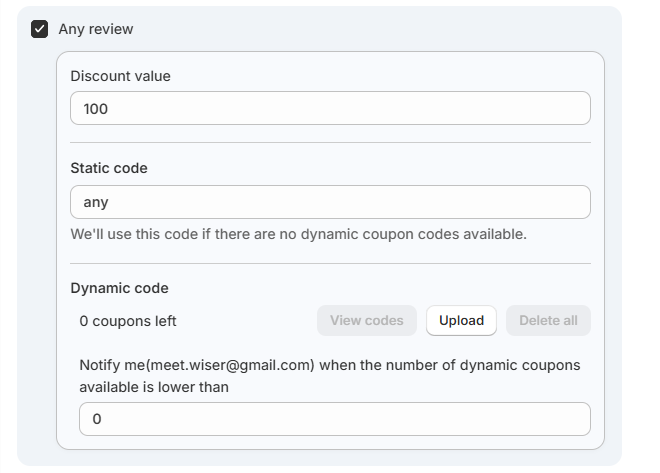
1. Any review
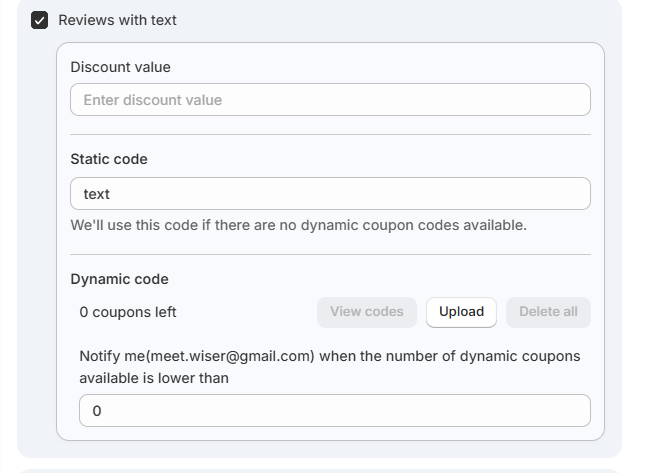
2. Reviews with text
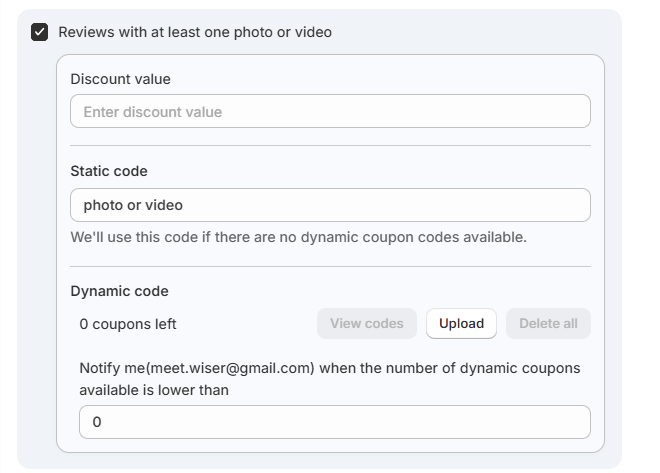
3. Reviews with a photo or video
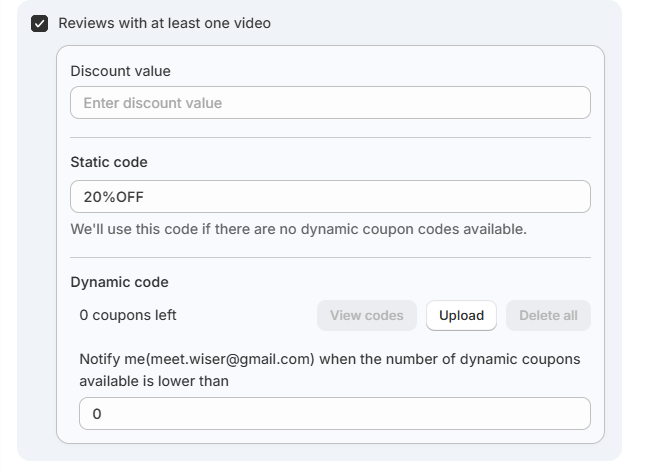
4. Reviews with video only
For each type, fill these fields:
Discount value
Enter the discount amount.
Static code
Add one fallback coupon code.
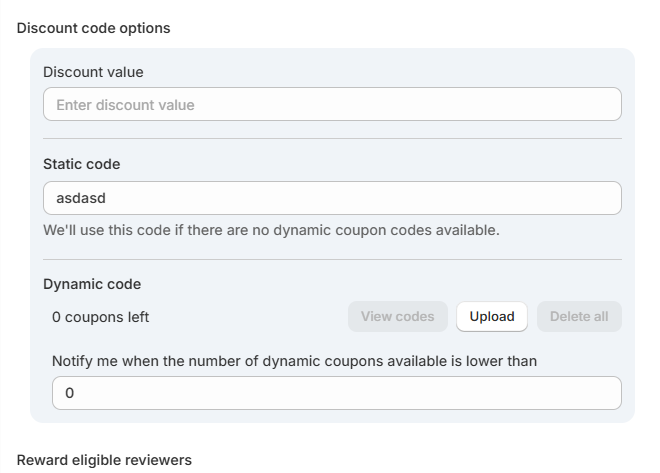
This code is used when no dynamic codes are available.
Dynamic codes
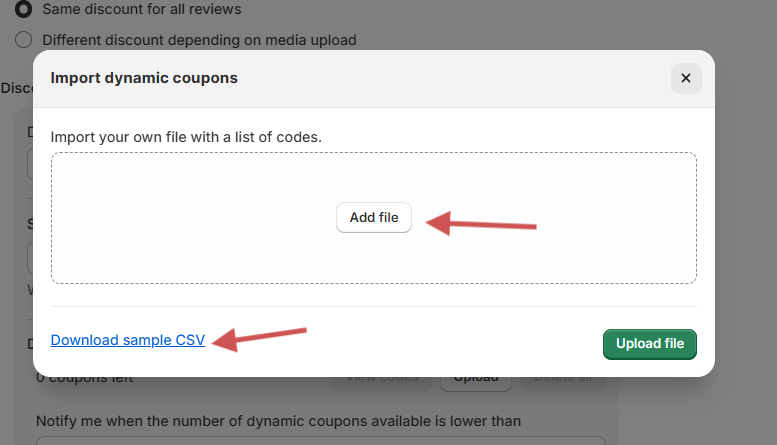
- Upload a file with multiple coupon codes.
- See the number of codes left.
- Delete all if needed.
- Set a low-stock alert so you get an email when available codes fall below your set number.
Step 4: Choose Who Gets the Reward

Pick one:
- Any reviewer
- Only reviewers who received a review request
Step 5: Set Rating Eligibility

Choose which ratings qualify:
- All (1 to 5 stars)
- 2 stars
- 3 stars
- 4 stars
- 5 stars
This helps you reward the rating range you prefer.
Step 6. Select Request Templates
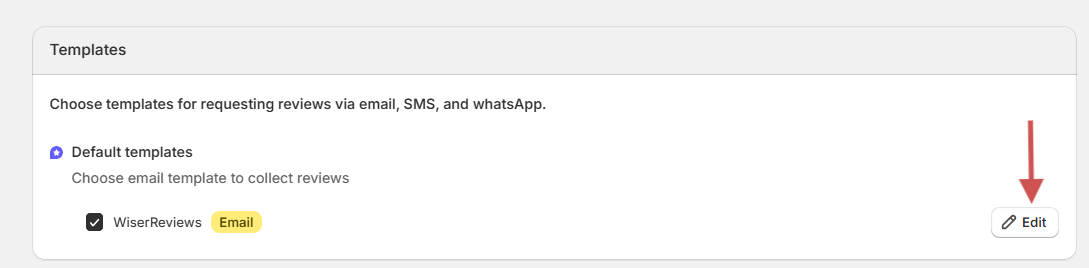
Scroll to the Templates section.
Choose the template that sends the reward email (discount code):
- SMS
You can use the default WiserReview template or edit your own.
Incentive Email Setup
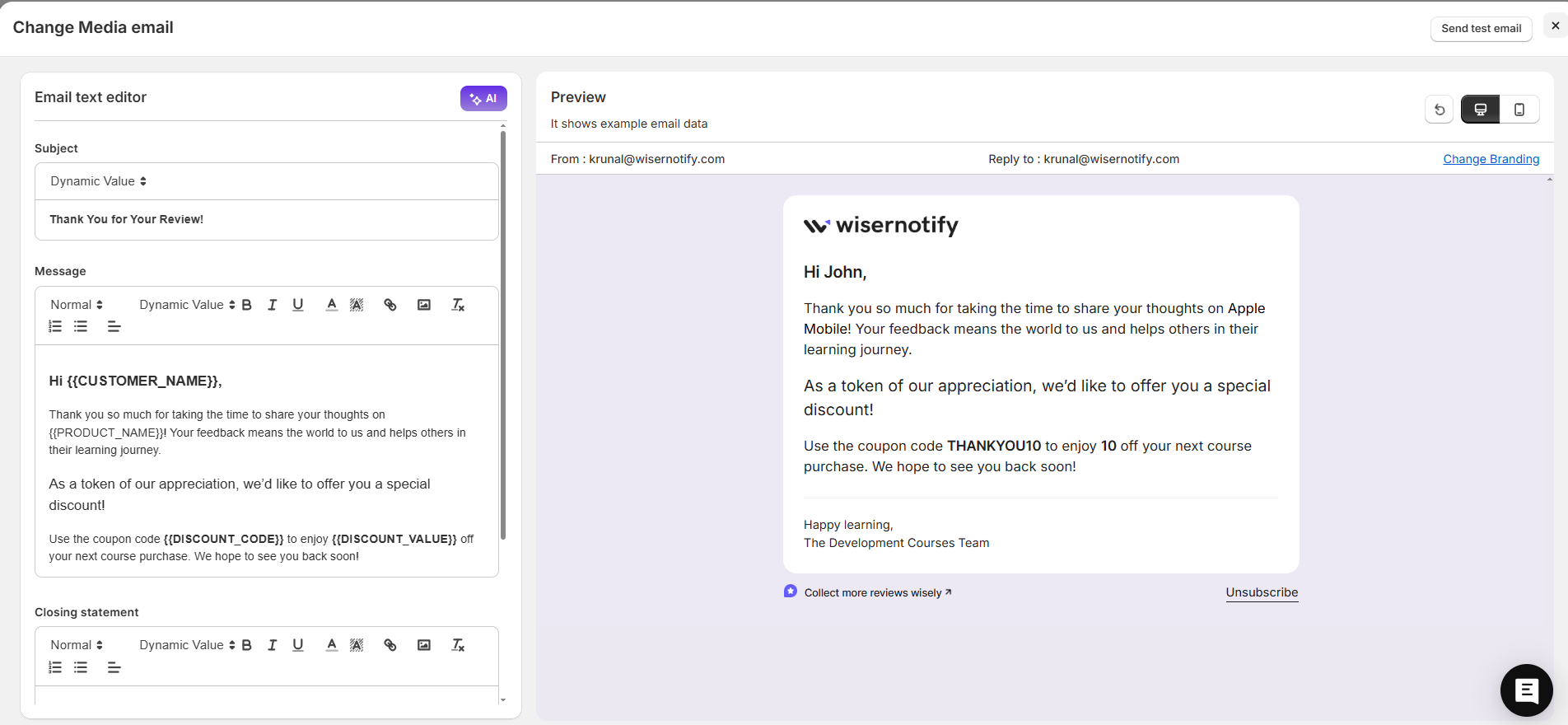
1. Open Template Settings
- Go to Email sender → Templates.
- Select Single Product Review Email (Incentive Email).
2. Edit the Email Content
Subject line
Write a simple subject.
Example: “Thanks for your review – here is your discount.”
Message body
Use placeholders so the email fills in the correct data:
- {{CUSTOMER_NAME}}
- {{STORE_NAME}}
- {{DISCOUNT_VALUE}}
- {{DISCOUNT_CODE}}
Keep it simple: greet the customer, thank them, show the reward, and add a short closing line.
3. Preview and Test
- Click Preview to check the layout.
- Click Send test email to send it to yourself.
4. Save
- Click Save to update the template.