Use the CSV import tool to migrate reviews from other platforms directly into WiserReview—fast and easy.
Step 1: Go to “Import Reviews via CSV”
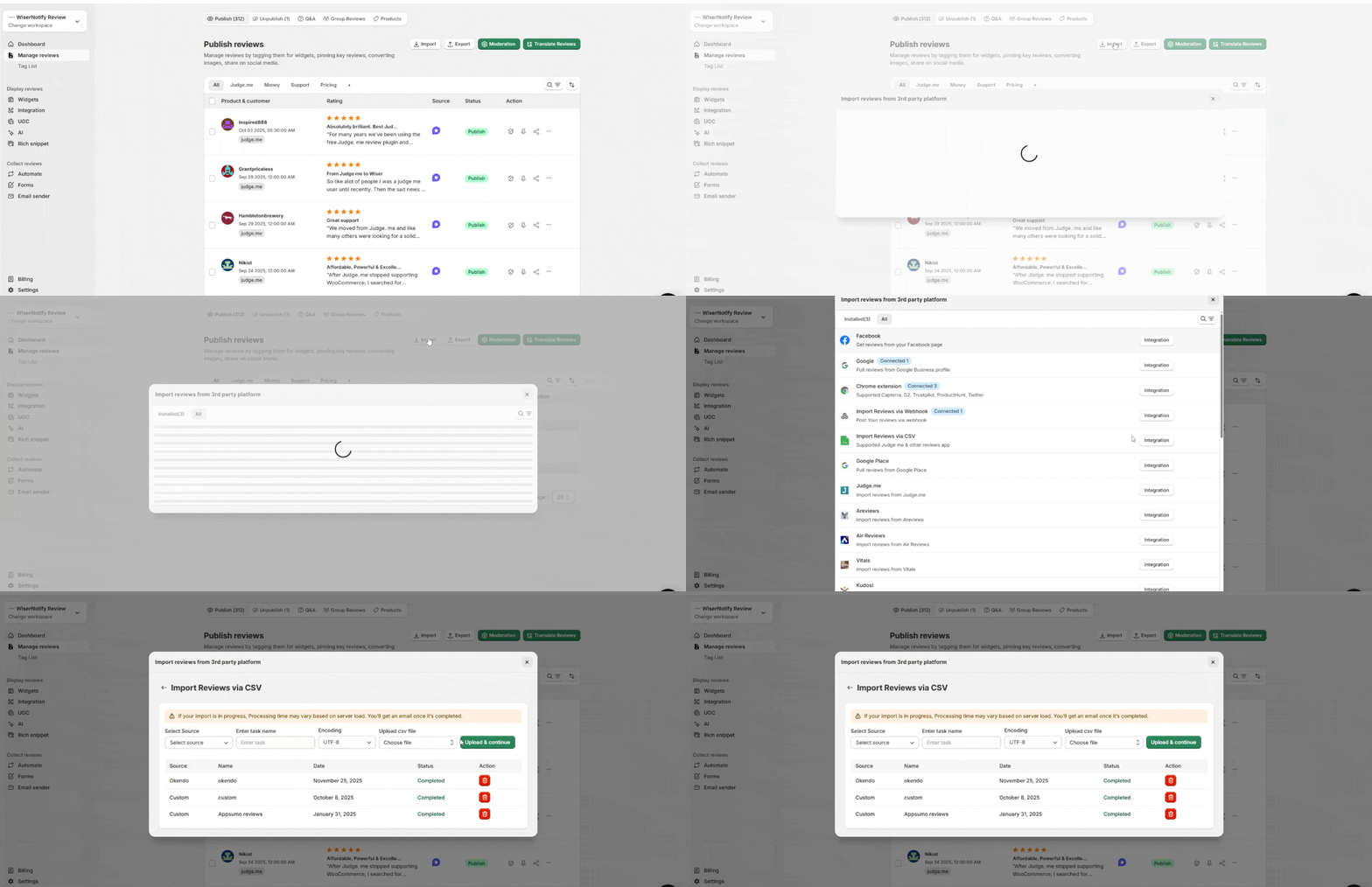
- Go to your WiserReview Dashboard.
- Navigate to: Manage Reviews → Import Reviews.
- Choose Import Reviews Via CSV from the dropdown list, and click on the Integrate button.
Step 2: Fill in Import Details and Upload File

- Select Source – Choose Custom
- Enter Task Name – Example: Import reviews
- Select Encoding – Keep as UTF-8 unless you’re using a different format.
- Upload CSV File – Click Choose file, then Upload & continue.
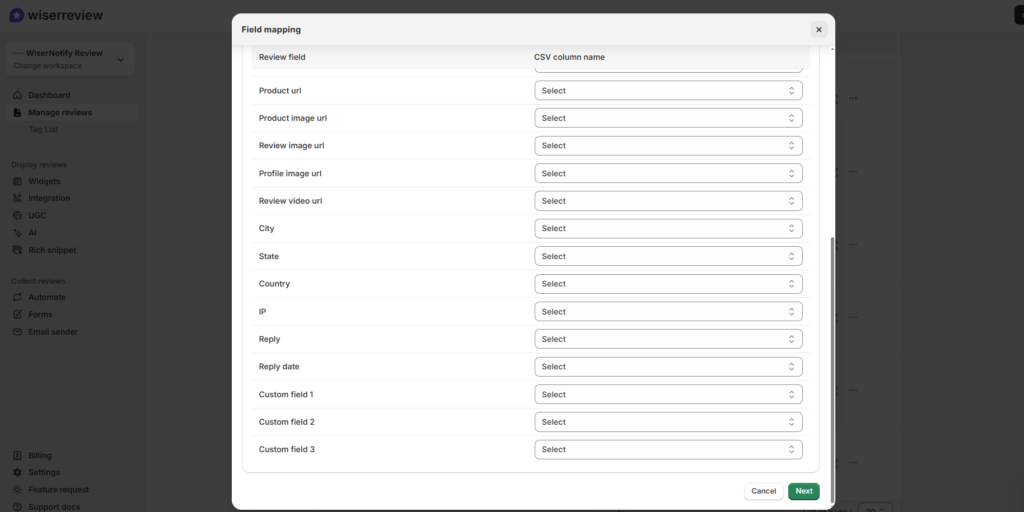
Once you choose your source and file, the Field Mapping screen appears.
For each Review field listed on the left, select the corresponding CSV column from your file on the right.
Required fields include:
- ⭐ Rating (1 to 5)
- 📅 Review Date (YYYY-MM-DD)
- 👤 Reviewer Name
You can also map:
- Product info
- Image/video URLs
- Location and custom fields
Make sure your CSV includes required fields such as rating and date (in the YYYY-MM-DD format).
You can download the example CSV file from the here link in the UI.
Step 3: Check Import Status
After uploading, you’ll see the import job listed with:
- Task Name
- Source
- Upload Status (e.g., Completed)
- Trash icon to delete if needed
✅ Once the status is Completed, the imported reviews will appear under Manage Reviews.