5 min
5 min 
Ever wondered how some WooCommerce products show star ratings, prices, and stock status right on Google? That’s the power of rich snippets. They help your products stand out and make shoppers click faster.
Rich snippets use schema markup to tell Google exactly what your product offers: price, rating, availability, and more. You can add it with a plugin like Rank Math or by placing the code yourself.
In this guide, I’ll show you the simplest ways to set up rich snippets so your WooCommerce products get more visibility and more clicks.
Understanding schema markup & Rich snippets
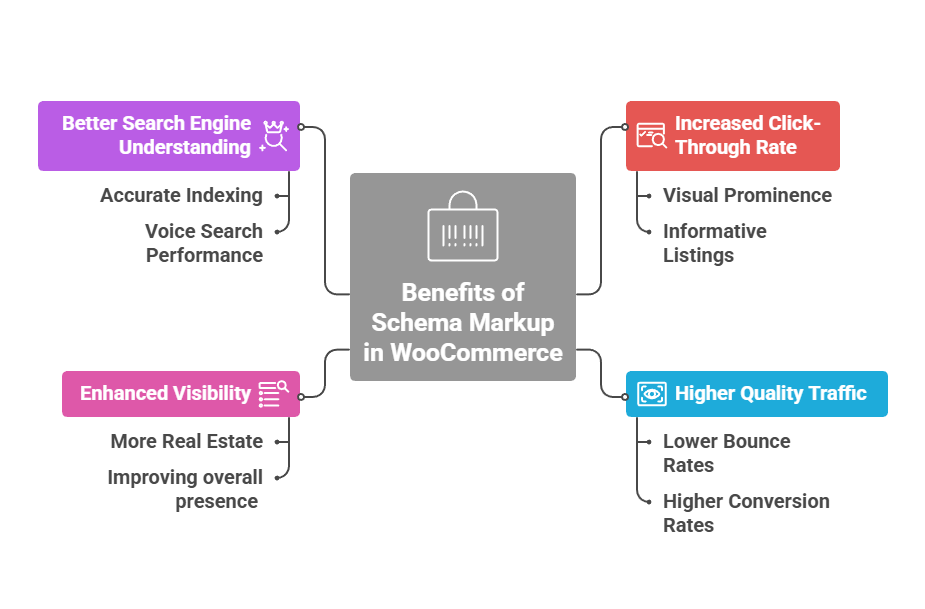
Schema markup is “structured data” that you add to your WooCommerce product pages to help Google understand what it “means” in each section of text.
Hence, when Google uses the markup to understand what it means on the page, It can give richer, more relevant search results to your consumers.
Rich snippets are the direct result of implementing effective schema markup. They are enhanced, eye-catching search results that go beyond the standard blue link, URL, and meta description.
For WooCommerce stores, you’ll typically work with these schema types:
- Product schema: Displays name, price, SKU, stock status, ratings, and reviews
- The offer schema shows the price, currency, sale price, and stock status.
- Review and Rating schema sends your star ratings and review count.
- Organization or Local Business schema shares your brand name, logo, address, and contact details.
- Breadcrumb schema explains your page structure so Google can show a clean path in search results.
The beauty of WooCommerce rich snippet implementation is that you don’t need to be a developer. Modern plugins handle the technical heavy lifting while you focus on running your store.

All your reviews in one place
Collect reviews, manage every response, and display them where they matter most.
Start Free →Method 1: Using a plugin for WooCommerce rich snippets
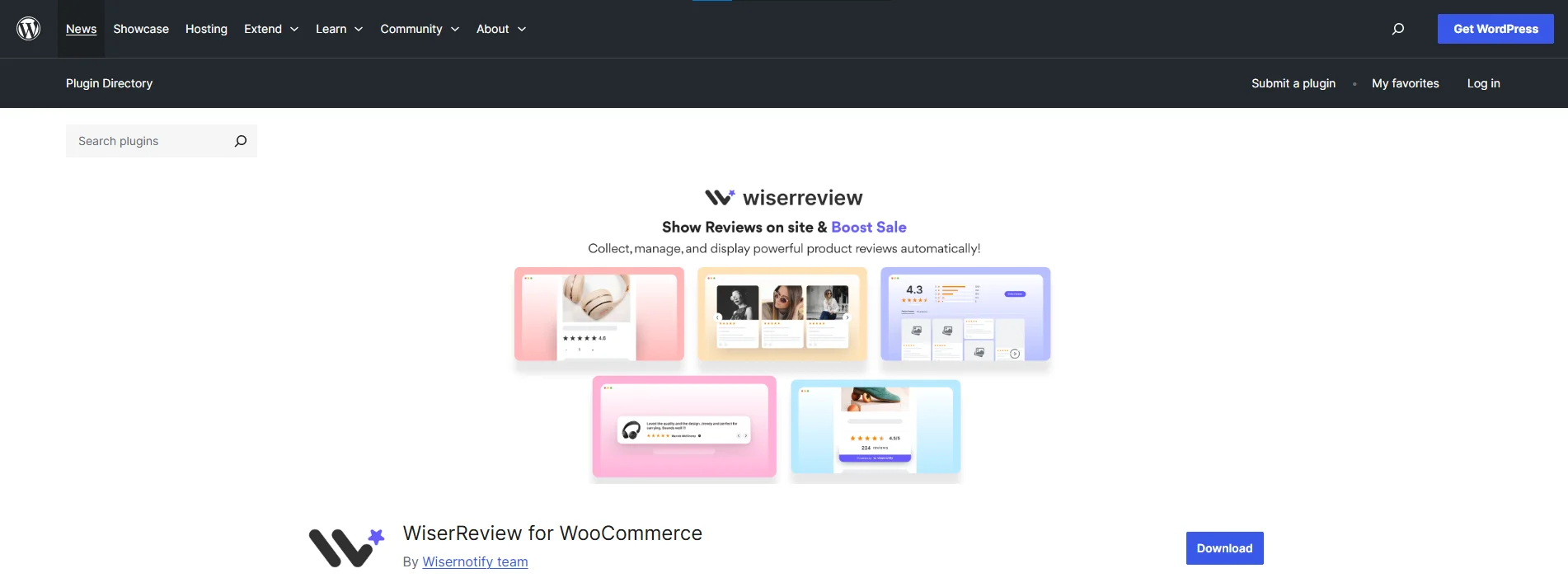
Plugins are the fastest way to add schema markup without touching code. Here’s how you can set up rich snippets via a plugin.
The steps below outline the entire flow from collecting videos to displaying them on product pages.
Step 1: Install the WiserReview WooCommerce plugin
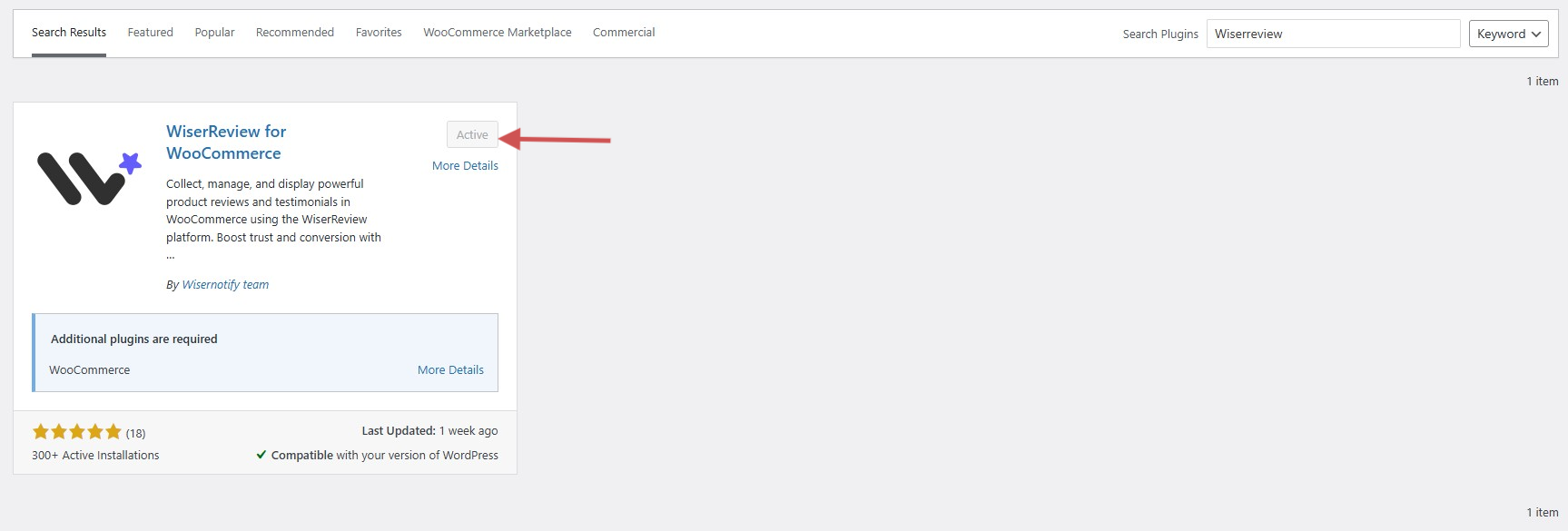
- Log in to your WordPress dashboard.
- Go to Plugins → Add New.
- Search for “WiserReview”.
- Click Install, then Activate.
Once installed, open the plugin panel from the left menu.
Step 2: Connect your WiserReview account
Inside the plugin screen:
Go to WiserReview → Settings.

Enter your API Key from your WiserReview account.

- First, Log in for WiserReview.
- You can find it under setting→ •API key in your WiserReview dashboard.
Save the settings.
Your products will sync automatically, and all reviews will be mapped to the correct WooCommerce products.
Step 3: Turn on rich snippets toggle

Turn on the “Generate Product Review Rich Snippet” toggle in the WiserReview plugin settings, and the plugin will automatically add JSON-LD review schema to your WooCommerce product pages so Google can show star ratings in search results.
Once enabled:
WiserReview adds JSON-LD schema in your product page <head> section
Schema includes:
- Star rating
- Review count
- Review text
- Product info
- SKU and identifiers (if available)
You do NOT need to add any code manually.
Step 4: Make sure your products have reviews
Rich Snippets only work if the product has at least one approved review.
No review = Google won’t show stars.
Step 5: Test your rich snippets
Use Google’s tools:
- Google Rich Results Test: https://search.google.com/test/rich-results
- Enter any product page URL.
- Check whether the Product and Review schemas appear valid.


All your reviews in one place
Collect reviews, manage every response, and display them where they matter most
Method 2: Manual Schema Markup for WooCommerce (Advanced)
If complete control will give you peace of mind, or your theme does not play well with plugins, then a manual schema markup solution is for you. Since this method requires basic coding knowledge, you will have maximum flexibility.
Step 1: Choose where in your theme or child-theme you will place the code (for example, in single-product.php or via a custom plugin).
Step 2: For each product page, insert a JSON-LD snippet in the <head> or just before </body> with the correct schema types:
<script type=”application/ld+json”>
{
“@context”: “https://schema.org/”,
“@type”: “Product”,
“name”: “Your Product Name”,
“image”: “https://example.com/image.jpg”,
“description”: “Short product description”,
“sku”: “SKU123”,
“brand”: {
“@type”: “Brand”,
“name”: “Brand Name”
},
“offers”: {
“@type”: “Offer”,
“url”: “https://example.com/product-page”,
“priceCurrency”: “USD”,
“price”: “99.99”,
“availability”: “https://schema.org/InStock”,
“itemCondition”: “https://schema.org/NewCondition”
},
“aggregateRating”: {
“@type”: “AggregateRating”,
“ratingValue”: “4.5”,
“reviewCount”: “24”
}
}
</script>
Step 3: Ensure you include all required fields: name, image, description, price, currency, and availability. Missing fields may cause warnings.
Step 4: Once the code is in place, load a product page and use the Rich Results Test tool to validate your markup. Fix any errors or warnings.
Step 5: Monitor your results in Google Search Console under Enhancements to track any issues with structured data.
Testing, Monitoring & Troubleshooting
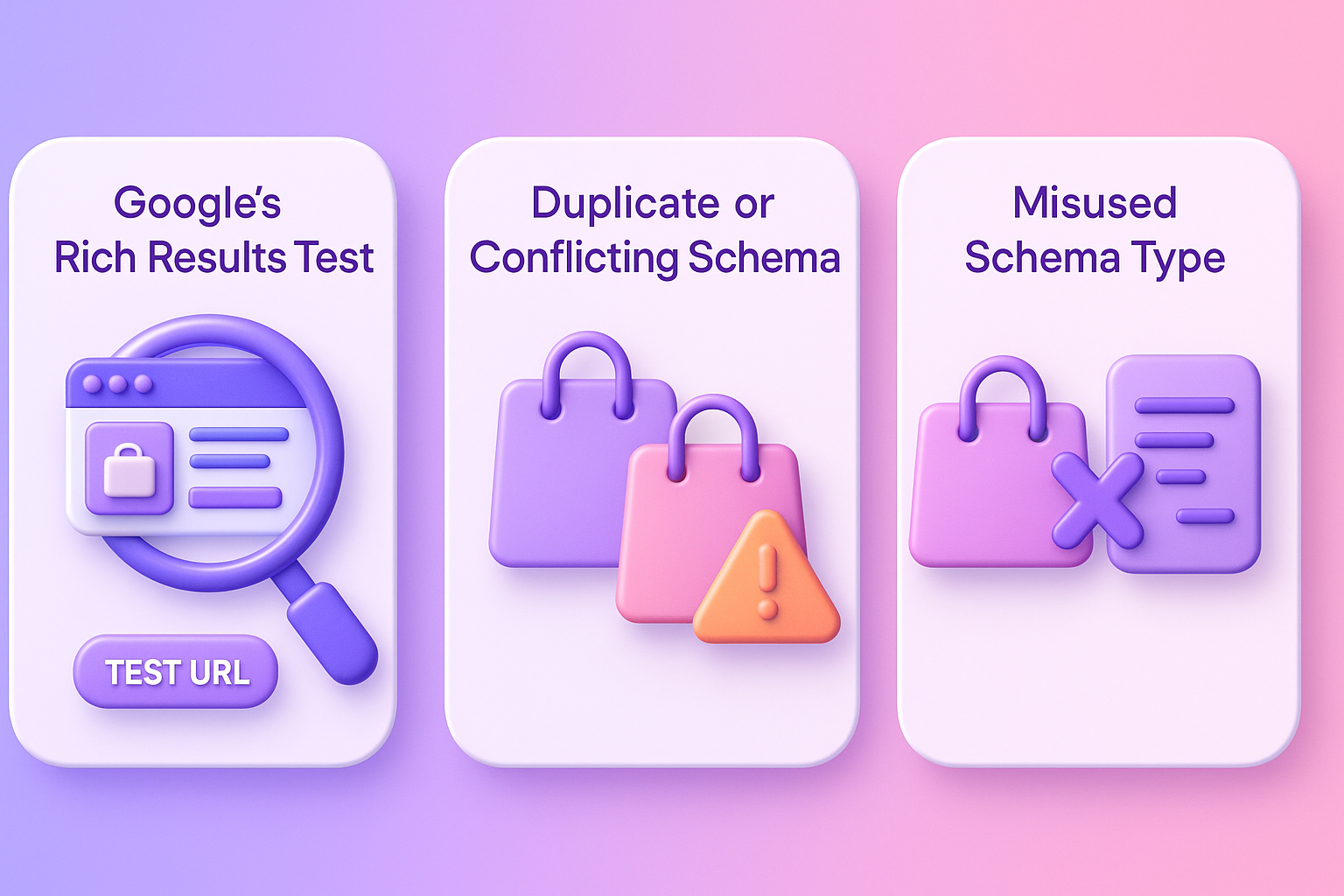
Adding schema is the first step. You must confirm it works and keep an eye on errors so your rich snippets stay active.
Use Google’s rich results test
Google’s Rich Results Test checks whether your product page passes for rich snippets or not. To test your page, visit the tool, enter your product URL, and run a scan. The tool shows which schema types it finds in your URL and identifies any errors, warnings, or missing fields.
The test shows three possible statuses. A valid result means your schema works. Valid with warnings means Google can still use it, but recommends improvements. An error means the schema is broken and cannot generate rich results.
Duplicate or conflicting schema (plugin + manual)
One of the most common WooCommerce issues is having a duplicate schema. It happens when your theme, SEO plugin, or custom code all add structured data simultaneously. Google may then ignore your markup because it sees multiple Product schema.
You can spot this issue through the Rich Results Test or Google Search Console. If you notice two Product schemas on the same page, remove one. Keep only one method: plugin or manual code.
Misused schema type (e.g., applying Article schema to a product)
Using the wrong schema type prevents Google from showing rich snippets. A product page should use Product schema, but some sites accidentally use Article, BlogPosting, or general Thing schema. The review schema must also connect to the Product schema; otherwise, it becomes invalid.
How to Fix:
- Apply structured data to relevant content types, use Product schema for products, FAQ schema for FAQs, Recipe schema for recipes
- Review Google’s schema documentation for each content type
- Use specific schema types: Product schema for WooCommerce products, not generic Thing schema
- Verify in Rich Results Test that the detected schema matches your page type
5 Tips for WooCommerce Rich Snippets

Rich snippets work best when your structured data is clean, consistent, and easy for Google to read. These quick tips help keep your schema correct and your product listings eligible for rich results.
1. Use the correct schema (Product, FAQ)
Each page must use a schema that matches its purpose. Product pages need Product schema. The FAQ sections need the FAQPage schema. When the schema type matches the content, Google can read it clearly and display the right rich result.
2. Keep data accurate and visible
Google only uses schema if the information is also visible on the page itself. If you mark up your schema – price, availability, etc. – and the information isn’t correct or doesn’t match what is on your page, it could lead to a penalty from Google.
Google’s rich data is generally based on content and information visible on the same URL/page. Your markup should be visible to search engines. Hidden or outdated data will prompt Google to disregard your markup.
3. Add only relevant types
Avoid adding every schema type just because a plugin allows it. Extra or unrelated schema confuses search engines. Keep your markup focused on what matters: product details, offers, reviews, and FAQs.
Example: Don’t add Recipe schema to a product page selling cooking tools. Don’t add Event schema unless you’re actually promoting an event. Keep it relevant and straightforward.
4. Don’t mark hidden content
Google rejects schema linked to content that users cannot see. Do not apply structured data to tabs, collapsed sections, or elements blocked by CSS or JavaScript. The schema must always match visible content on the page.
Google’s crawlers check whether schema data is actually visible to users. Marking hidden content is considered deceptive and can result in manual penalties.
5. Update and test after changes
Any change to product details, pricing, availability, or theme code can affect your schema. When you make updates, test your page under Google’s Rich Results Test to verify that the markup is still functioning and still valid for rich results.
Testing can be further automated using the Rich results Test API for bulk testing and coupled with Search Console to examine rich result status in Performance Reports.
All your reviews in one place
Collect reviews, manage every response, and display them where they matter most.
Start Free →Wrap up
Adding WooCommerce rich snippets is simple. Whether it is through a WooCommerce rich snippets plugin such as Rank Math or creating schema manually, the ultimate goal is to allow search engines to interpret the data and content behind your products.
WiserReview can help you balance your product data and leverage your reviews to show up in rich snippets for additional exposure in search results. It’s an easy way to display authentic customer feedback that Google loves.
Remember to test your pages and keep data accurate. Stores with clear, well-structured data get more clicks, and that leads to more sales for your store. WiserReview makes that easy.
Frequently asked questions
It can take anywhere from 3 to 12 weeks for rich snippets to show up. This depends on factors like Google’s crawl frequency, your site’s authority, and its processing schedule.
No, you don’t need coding skills. Plugins like Rank Math, Yoast SEO, and Schema Pro automatically generate the required schema markup with minimal setup.
Yes, rich snippets boost visibility and click-through rates. Shoppers are more likely to click when they see star ratings, prices, and availability in search results, which increases the likelihood they will buy once they visit your site.
Schema markup is the code added to your site to provide structured data. Rich snippets are the enhanced results shown by Google when the schema is correct and follows their guidelines.

Krunal