2 min
2 min 
Exporting reviews from Okendo can be useful for backup, migration, or using the data elsewhere.
This post explains the full process in clear steps, using simple tools anyone can follow.
You’ll learn how to:
- Download a CSV file of all your reviews from Okendo.
- Use that file to import reviews into another platform, such as WiserReview.
Having reviews in CSV format allows more control. The same reviews can be reused on new websites, shown in different layouts, or included in marketing tools.
This process keeps everything organized and ready to work with, no matter where you decide to manage your reviews next.
How to export Okendo reviews
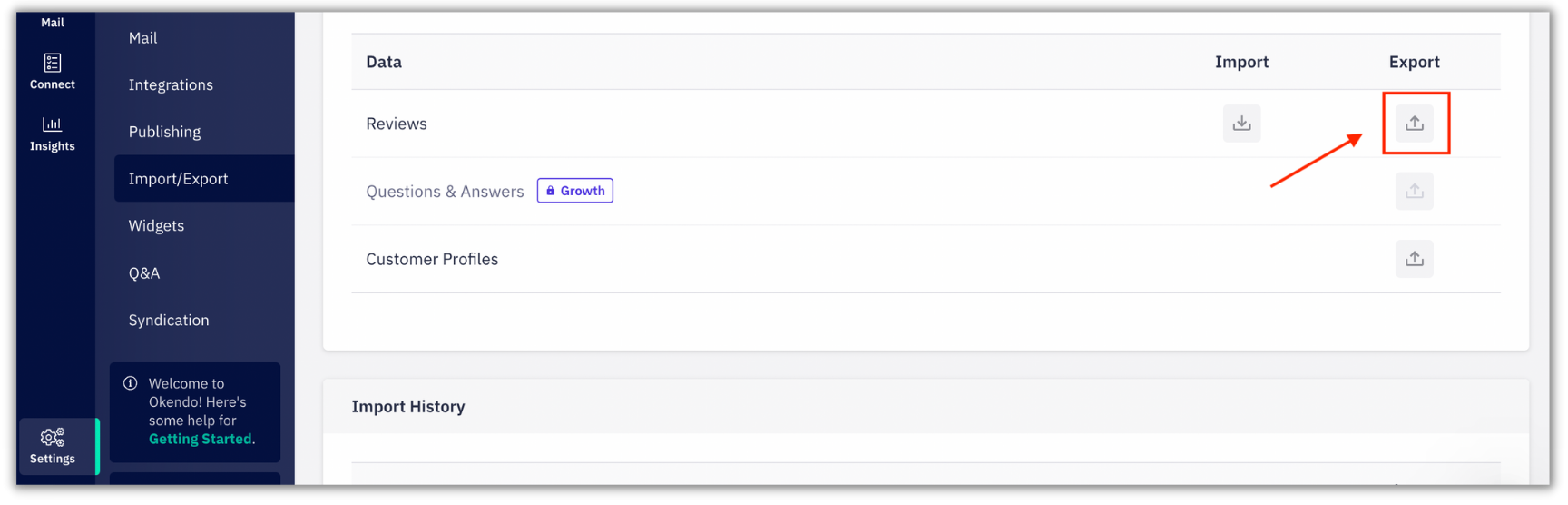
- Log in to your Okendo Dashboard.
- In Okendo’s dashboard, go to Settings → Import/Export.
- Under the Data table, click on the Export icon in the “Reviews” row.
- Confirm the export in the pop-up that appears.
- Choose from “All time” or your desired filter.
- Click Request Export.
Moving Reviews from Okendo? WiserReview Is the Better Option

Businesses using Okendo often need more flexibility, faster review imports, and better control over how reviews are collected and displayed.
WiserReview offers a smoother experience especially when switching from platforms like Okendo.
WiserReview supports direct CSV imports from Okendo, offers more widget options, and includes powerful tools for tagging, moderation, and automation, all with a cleaner setup and better pricing.
Below is a direct comparison between WiserReview and Okendo based on key review management features.
| Feature | WiserReview | Okendo |
|---|---|---|
| Review Display Widgets | Multiple layouts & styles | Basic layout options |
| Review Tagging | Available | Not available |
| Collect reviews | Text, photo, and video reviews. Import from Google, Facebook, and other sites. Verified buyer tags. | Limited option |
| Auto Moderation | Rules for rating, media, and keywords | Manual only |
| Social Sharing | Auto-post to social media | Not available |
| Pricing | Starts with a free plan, and paid plans start at $9/ month | Starts around $19/month |
How to import Okendo reviews to WiserReview

After exporting your reviews from Okendo, bringing them into WiserReview helps keep your customer feedback active and visible.
WiserReview gives more flexibility in how reviews are collected, displayed, and managed.
Step 1: Open the WiserReview “Manage Reviews” Section

Firstly, Log in with WiserReview.
Navigate to the Manage Reviews module in your WiserReview dashboard.
Then click on the import reviews.
Step 2: Click on the “Integration” button with Okendo
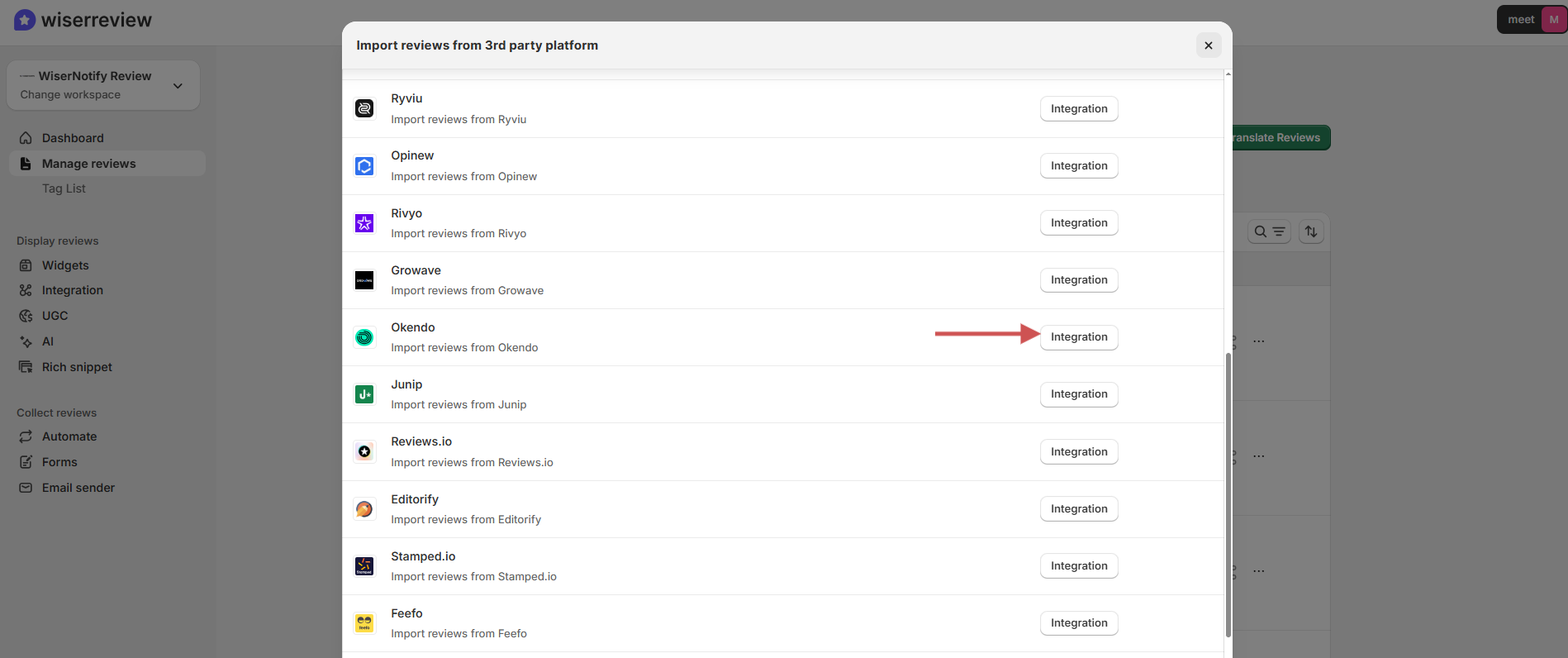
Click on integration, and you will see a pop-up below.
Step 3: Upload CSV and import reviews
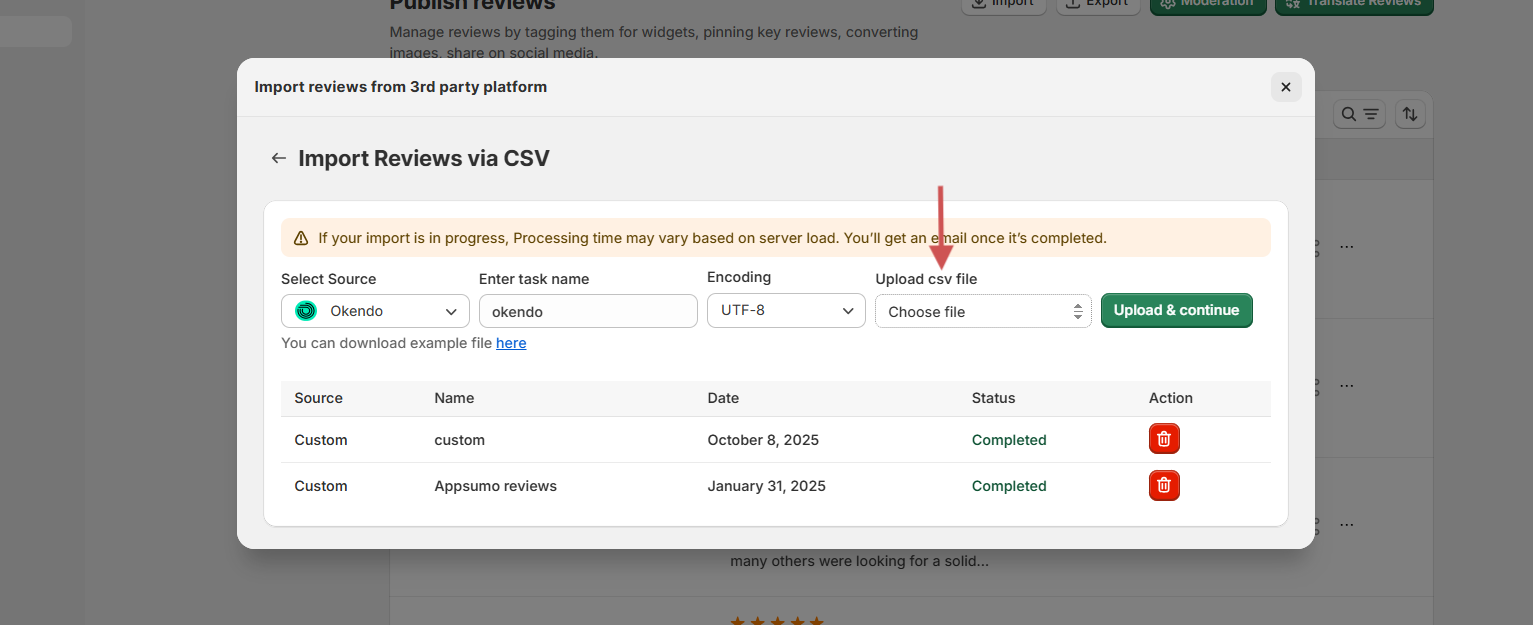
You’ll be prompted with options:
- Select CSV File Upload
- Click Browse to upload the Okendo CSV you downloaded earlier.
- If you export CSV from another platform, then map your field as per the requirement.
Necessary: Ensure your CSV columns match WiserReview’s required format. You can download the example file by clicking on You can download the example file here.
- product_id
- reviewer_name
- rating
- review_text
- created_at
- media_url (optional)
Step 4: Upload & continue
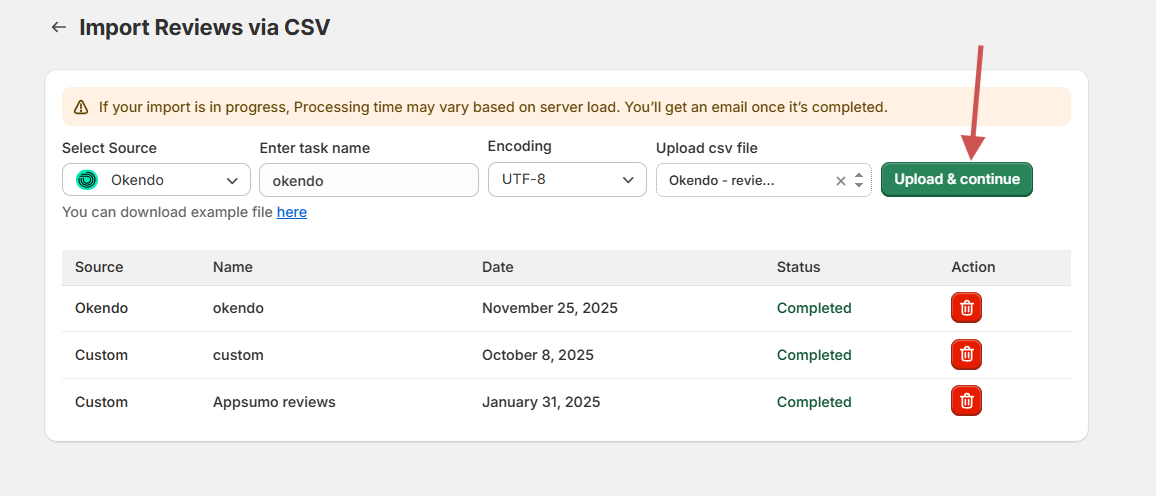
- Confirm all looks good, then click Upload & Continue.
The reviews will now be visible under your Manage Reviews panel.
Optional: Add tags or media filters
After importing:
- Use the Tag List module to assign product categories or sentiment tags
- Use Moderation Filters to hold or auto-publish imported content.
Conclusion
Exporting reviews from Okendo and importing them into another platform, such as WiserReview, is a simple process.
Once your reviews are in a CSV file, you can reuse them anytime on a new site, in widgets, or in your email campaigns.
Using WiserReview, you get more control over how reviews are managed, displayed, and shared.
Everything stays organized, and your existing reviews continue to build trust and support your business.
Frequently asked questions
Yes, Okendo allows you to export all reviews in bulk through a CSV file. You can also apply filters for specific products or time ranges before exporting.
Okendo exports reviews in CSV format, which is a simple, spreadsheet-style file you can open in Excel, Google Sheets, or import into other review platforms like WiserReview.
WiserReview supports CSV import directly, but it’s important to match the required column names (like reviewer_name, rating, review_text, etc.). You can download a sample file inside the import section to guide formatting.
Yes, if your CSV includes a column for media_url, WiserReview can display the attached images or videos in the reviews you import.
Yes, as long as you have a CSV file with the correct fields, WiserReview allows importing reviews from various platforms not just Okendo. Just make sure the columns match the platform’s format or use the mapping option during import.

Krunal